Time management is personal–what works for you might not work for someone else. Yet, I think we can all agree on one thing; we want tools and techniques that make us more efficient and productive with the time we have.
I’ve spent a good chunk of energy testing out different apps and techniques—everything from complicated systems to straightforward to-do lists. Along the way, I discovered what genuinely helps me stay focused, organized, and less stressed.
Now, I’d like to share those insights with you.
Here’s the tl;dr
Top time management tools (in no specific order):
Flow - best for async communication
Notion - to help you stay organized
Routine - to stay on top of your daily tasks
Google Calendar - to help organize and schedule your day
Raycast - to refine and improve your personal workflow with keyboard shortcuts and commands
Forest - to help you stay in the zone
Any.do - to keep your personal to-do’s in check
Superhuman - for managing your never ending emails
My favourite time management techniques:
The Eisenhower Matrix for prioritizing your tasks
The Ivy Lee Method to minimize distractions and get stuff done
Time Blocking to create dedicated deep work sessions
The Pomodoro technique to help work more efficiently with breaks
Habit Stacking to build new habits for personal and work related goals
What makes a time management tool “the best”?
A good time management tool or technique should help you do more of the right things in the limited time you have
Time management tools are not just focus timers; they should compliment your entire workflow, not just some parts of it. Often, it’s not a singular tool but a collection of tools that help you achieve the goals you set out to accomplish.
I’ve narrowed it down to:
A functional use case: It should solve a real, everyday problem—like streamlining communication or staying on top of tasks. If it doesn’t genuinely help, it’s just another shiny distraction.
Simple but flexible: It should be straightforward for everyday use but still offer enough customization or advanced features to adapt to different workflows.
Easy to use: The best tools don’t require hours of setup or complicated tutorials. You should be able to get started quickly and refine things as you go.
Integration into my personal workflow: A tool shouldn’t force you to change your existing workflow, instead it should fit your preferred working style.
The best time management tool for async communication
Flow
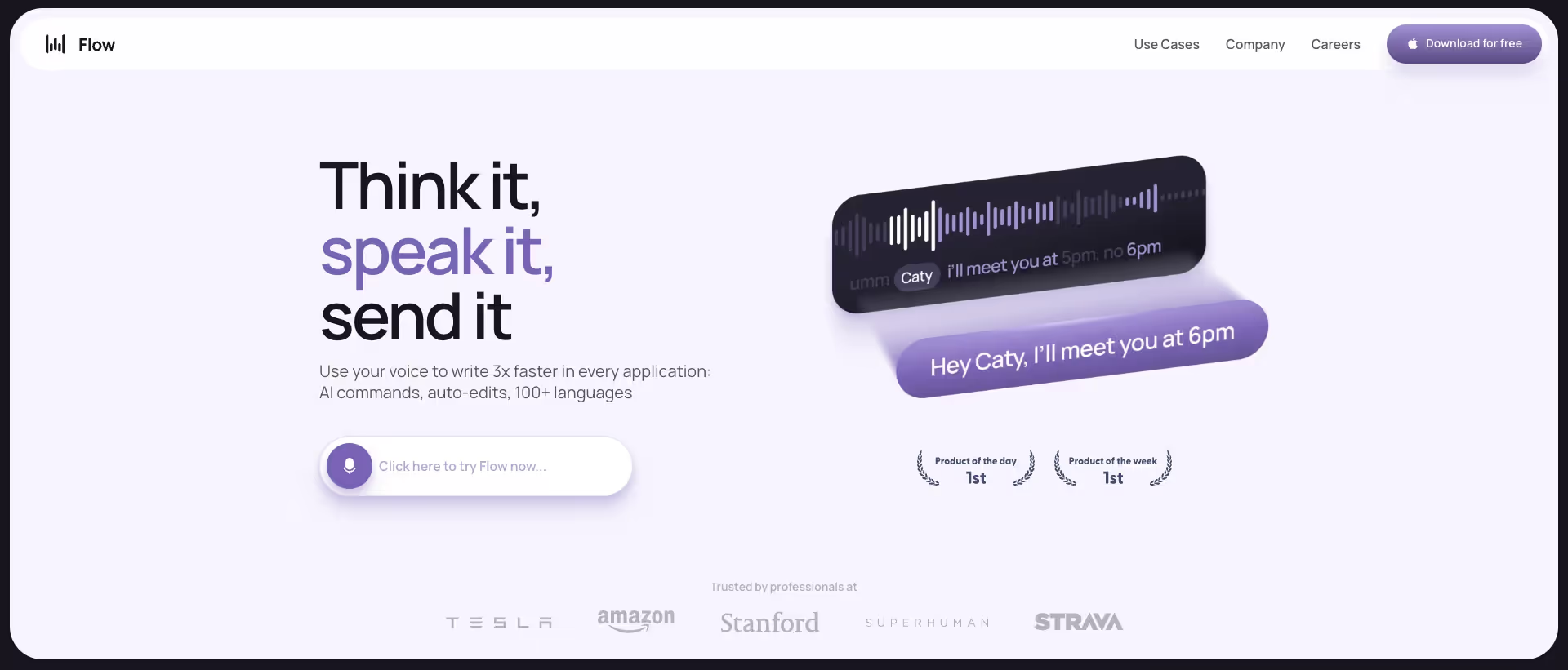
One of the fastest ways to win back some of your time is to incorporate dictation into your workflow. Flow is a productivity first dictation tool that prioritizes clean and structured text output, perfect for async communication. It’s useful when you need to respond to your slack/email, prompt AI, or document thoughts and tasks.
My favorite use cases for Flow:
Talking to AI: Speech to text is the easiest way to interact with AI. By speaking naturally, you provide granular details, which in turn leads to higher-quality output.
Capturing tasks on the go: With a quick Raycast shortcut, I use Flow to capture ad hoc tasks in my Notion. Speaking naturally lets me add relevant context without slowing down.
Sending messages and emails: Nothing is as fast as voicing your response in a message or email. It’s like sending a structured voice note, but in text.
Pros:
Works in any application with a text box
AI powered sentence formatting and error correction (no more typos)
Flow learns your writing style and tone, so every message you send still sounds like you.
A command mode that lets you speak any edits you might have (“Hey Flow, make this more professional”, “Hey Flow, break this up in bullet points”)
Not suited for technical dictation involving industry-specific jargon or highly complex language
Pricing: Free and paid plan starting at $15/month. The free plan will get you reliable and fast dictation whereas the paid plan will give you access to more advanced features (tone match, edit mode, and more).
The best time management tool to stay organized
Notion
Notion is the go to place for everything that needs to be documented. Whether that’s strategizing documents, onboarding docs, or personal notes. Many people think of Notion as a “second brain,” and I couldn’t agree more.
How I use Notion to free up my mental bandwidth:
Use databases for document storage: I create separate databases for long-form docs, important links, and meeting notes. Having these in one place makes it easy to reflect on past work or share info with colleagues.
Creating systems for my personal workflows: While I enjoy traditional task management systems like Linear and Asana, Notion makes it easy to customize a database to fit my personalized workflow.
Project Kanban boards: I create boards for quarterly projects, integrating tasks, documents, and relevant links in one place. This setup offers stakeholders a clear overview of ongoing projects, their specific tasks, and keeps the whole team on the same page.
Pros:
Extremely flexible: you can build anything from a content workflow to full project management system
It integrates with nearly every app out there, making it incredibly easy to use within different apps like slack, gmail, clickup, and more
Notion supports real-time collaboration, making it ideal for teams. Users can share pages, comment on tasks, and work together seamlessly, which enhances workflow efficiency
Cons:
Notion has a relatively steep learning curve that can overwhelm newcomers
Notion’s deep customization option can become a distraction and keep you from getting things done
Non-tech savvy folks might find it too technical and complicated to use
Notion pricing: The free plan is robust, though it has a block limit. Once you hit that limit, you’ll need to upgrade to a paid plan at $12-18 per member, per month.
The best time management tool to stay on top of your daily ad hoc tasks
Routine
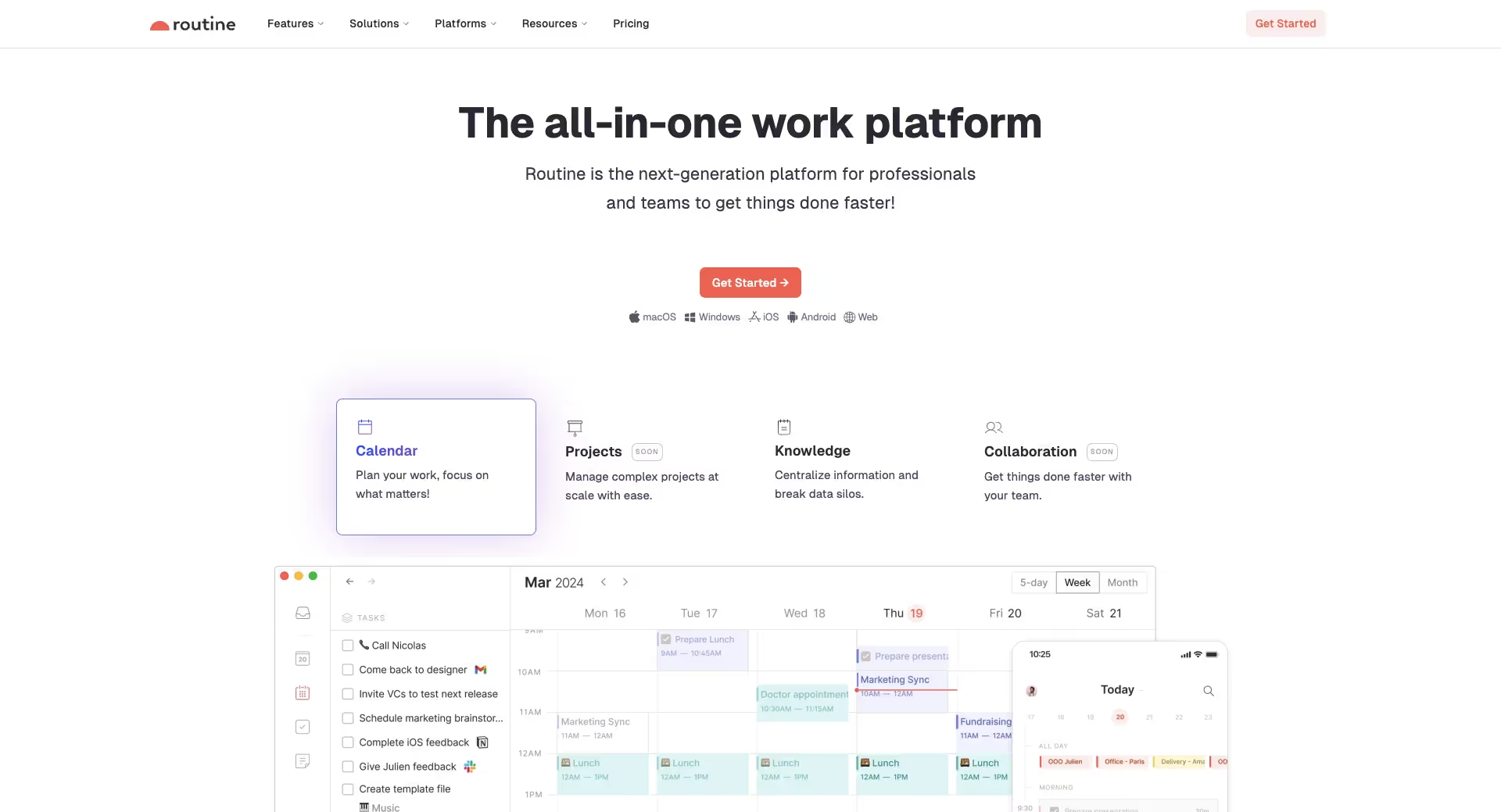
Routine is a calendar focused task management tool designed to help you make sense of your daily tasks and events.
With a simple keyboard shortcut you can capture incoming tasks which are stored in an “inbox”. From your inbox, you sort and schedule tasks for a specific week/day. Other features like “pages” allow you to document agendas, lists, ideas, and more, makingRoutine a flexible but simple task management tool.
What I like about Routine:
It feels personal: Unlike other task management tools, Routine feels as if it were designed for personal task management, especially ad hoc tasks. Its features aim to simplify how you capture, view, and prioritize your daily tasks and events.
Routine includes “pages”: Routine allows you to create a blank document (similar to Notion) in which you can take meeting notes, brainstorm ideas, or even a PRD.
Capture tasks from anywhere: With a quick keyboard shortcut you’re able to capture tasks as soon as you receive them. Routine also includes an “inbox” feature which allows you to review your captured tasks and schedule them into your day.
Pros
Clean and user friendly design that is easy to use and navigate
The ability to create personalized or re-usable documents (a.k.a pages)
The keyboard shortcuts makes it effortless to capture and keep track of ad hoc tasks
Routine allows you to time block tasks onto your calendar, making it easier to schedule deep work sessions
The integrated calendar provides a quick view of all your upcoming events and scheduled tasks
Cons
Limited integration options on the free plan
Some of its simpler features (like the monthly calendar view) are locked behind the paid plan
Pricing: Routine offers a free plan which covers a majority of its features. The paid plan ($12 - $15 per month) offers more advanced features.
The best time management tool make sense of your day
Google Calendar
There are plenty of calendar apps out there, but I find Google Calendar the simplest and most convenient. It’s fast, easy to use, flexible, and integrates with nearly every app that exists.
Why I like Google Calendar:
It keeps scheduling straightforward: Setting up meetings, adding reminders, and inviting people doesn’t take more than a few clicks.
It makes time blocking a breeze: Google’s simple interface allows you to click and drag time blocks throughout your day. The "Focus Time" feature keeps interruptions away by blocking meetings when you need to concentrate.
Quickly scan available time slots of your colleagues/clients: The find a time feature simplifies scheduling by allowing users to see when colleagues are available, making it easier to coordinate meetings without back-and-forth emails.
Pros:
It’s free to use
It’s extremely user friendly. Simply click, customize, and you’re done
An abundance of extensions and add ons you can use to customize your calendar and workflow
Quickly subscribe to any functional calendar like a holiday calendar, OOO calendar, and more
It integrates with almost every app that exists
Cons:
Can be challenging to view on smaller mobile screens
Limited customization options compared to other calendar apps
Google Calendar pricing: Google Calendar does not have a specific pricing scheme, instead you pay for a Google Workspace to access all the workspace features (including Google Calendar ).
The best time management tool to refine your workflow
Raycast
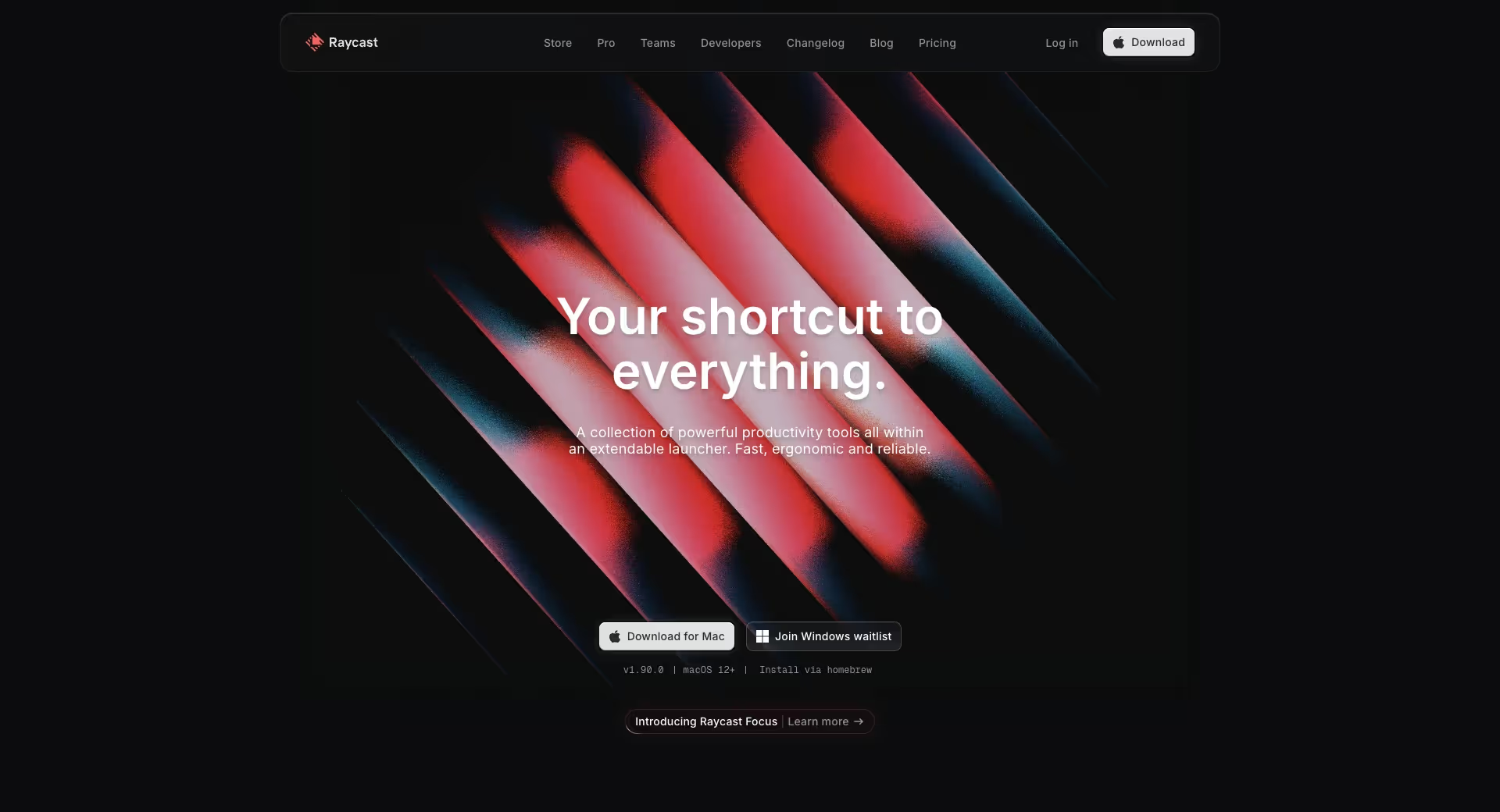
Raycast is a keyboard-driven Mac app that gives you shortcuts to manage your mac and daily workflow. It’s useful for folks who find themselves continuously switching between multiple apps and tasks throughout the day.
Here are some of my favorite features and use cases:
Snippets: Snippets is where you can store repeatable text templates and is useful for specific email templates, document structures, code snippets, AI prompts, and more. I find snippets most useful to store context that I regularly use within my AI prompts.
Integration with tools: Access or execute tasks in other tools right from Raycast. Add an entry to Notion, send a Slack message, convert an image—whatever you need.
Quicklinks: With Raycast you can set-up a “quicklink” that has you hitting a shortcut to access a specific website link or app. As an example, I use “options+p” to start a perplexity search, “options+f” to search my google drive, and “options+e” to view my unread slack messages.
Pro:
The free plan includes a majority of its features. There’s almost no reason to upgrade to pro
Disconnect from Wi-Fi and mobile data immediately. Restart in Safe Mode (Android) or update iOS to the latest version (iPhone). Remove any suspicious or unrecognized apps. Clear your browser cache and downloads. Only perform a full reset if other steps fail and you’ve already backed up your data.
Time management is personal–what works for you might not work for someone else. Yet, I think we can all agree on one thing; we want tools and techniques that make us more efficient and productive with the time we have. I’ve spent a good chunk of energy testing out different apps and techniques—everything from complicated systems to straightforward to-do lists. Along the way, I discovered what genuinely helps me stay focused, organized, and less stressed. Now, I’d like to share those insights with you. Here’s the tl;dr Top time management tools (in no specific order): Flow - best for async communication Notion - to help you stay organized Routine - to stay on top of your daily tasks Google Calendar - to help organize and schedule your day Raycast - to refine and improve your personal workflow with keyboard shortcuts and commands Forest - to help you stay in the zone Any.do - to keep your personal to-do’s in check Superhuman - for managing your never ending emails My fa...





Comments
Post a Comment